Summarize This Article with AI


Getting the URL of a video on Kick allows you to share your content with others, embed it on websites, or reference it in articles and messages. Whether you’re sharing your own video or someone else’s public content, Kick makes it simple to obtain the direct video link.
This guide provides a straightforward, step-by-step method to get your Kick video URL on both mobile and desktop platforms.
How to Get Your Kick Video URL On Desktop
1. Open the Kick website on your browser and log in to your account using your credentials. If you don’t have an account, you’ll need to sign up first.

2. Once you’re logged in, tap on your profile icon or avatar in the top-right corner. Then select the “Channel” option to go to your profile page.
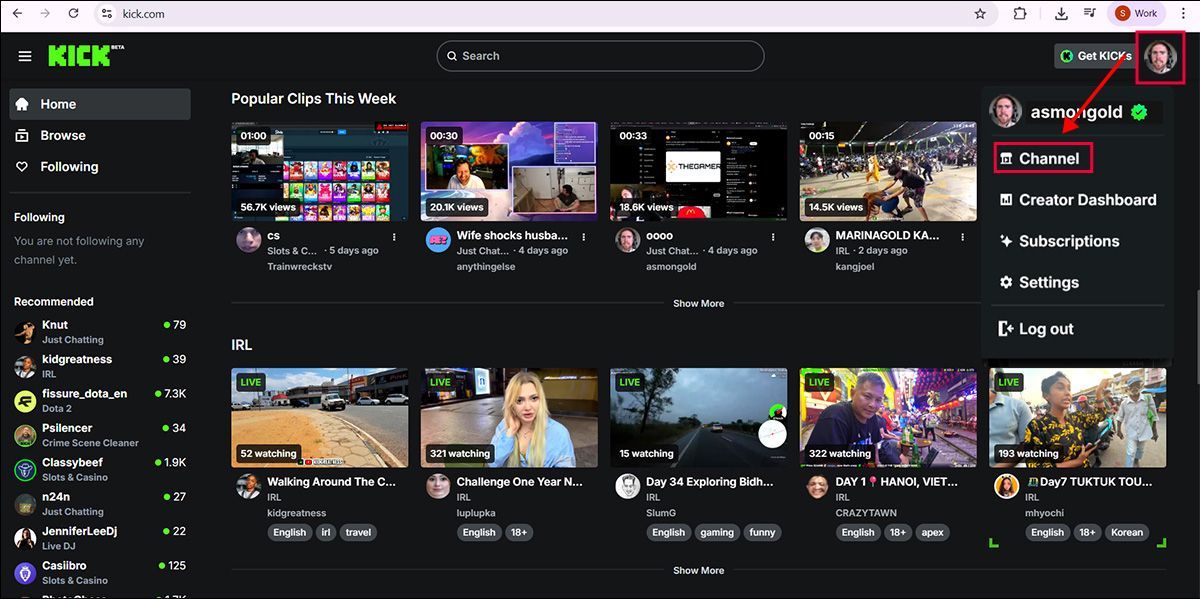
3. Then click on “Video” and select the video you want to share. Tap the video to view it in full screen.

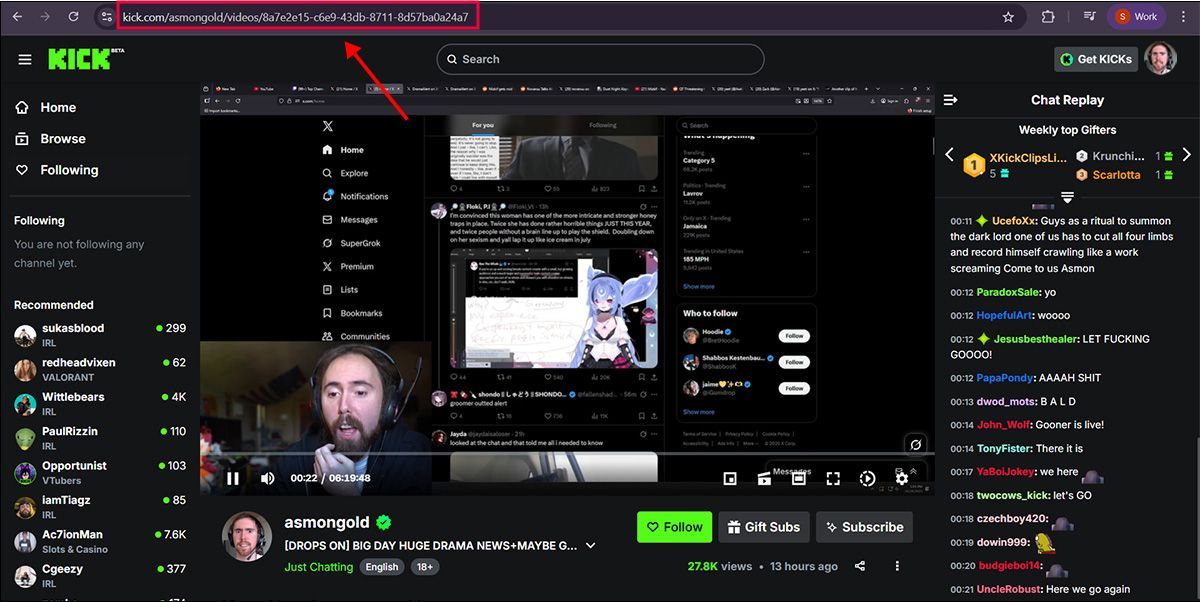
4. Now, look at the address bar of your browser. The URL displayed is the direct link to your video. “Copy URL from the browser address bar”. Share it with friends, collaborators, or followers.
How to Get Your Kick Video URL On Mobile
1. Open the Kick app on your mobile device and log in using your credentials. Public videos can be accessed even without a login.

2. Navigate to your profile in the top-right, then click the “channel” option to go to your profile page. Then click on “Video” and select the video you want to share.

3. Tap the video to view it in full screen. Tap the Share Options Button or the “ Share icon”.

From the menu, choose “Copy Link”. This will copy the video’s direct URL to your clipboard.
This is how you can copy the Kick video URL. You can now use the copied Kick video URL to share or reference the video wherever needed.