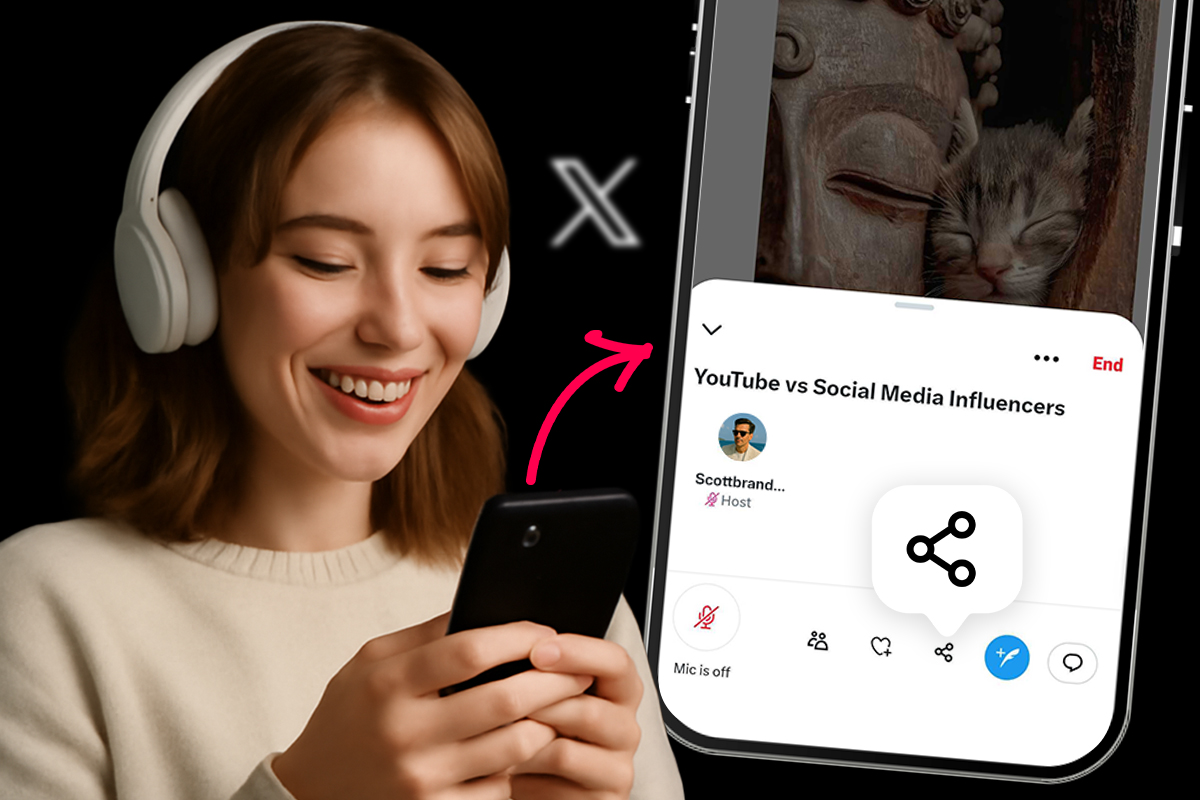
Summarize This Article with AI


If you want to share a specific X Space, you’ll need its URL for that particular space. Follow these simple steps to copy your X Space link on desktop and mobile (Android/iOS).
How to Get Your X Space URL on Desktop/Laptop
- Go to X.com and log in to your account.
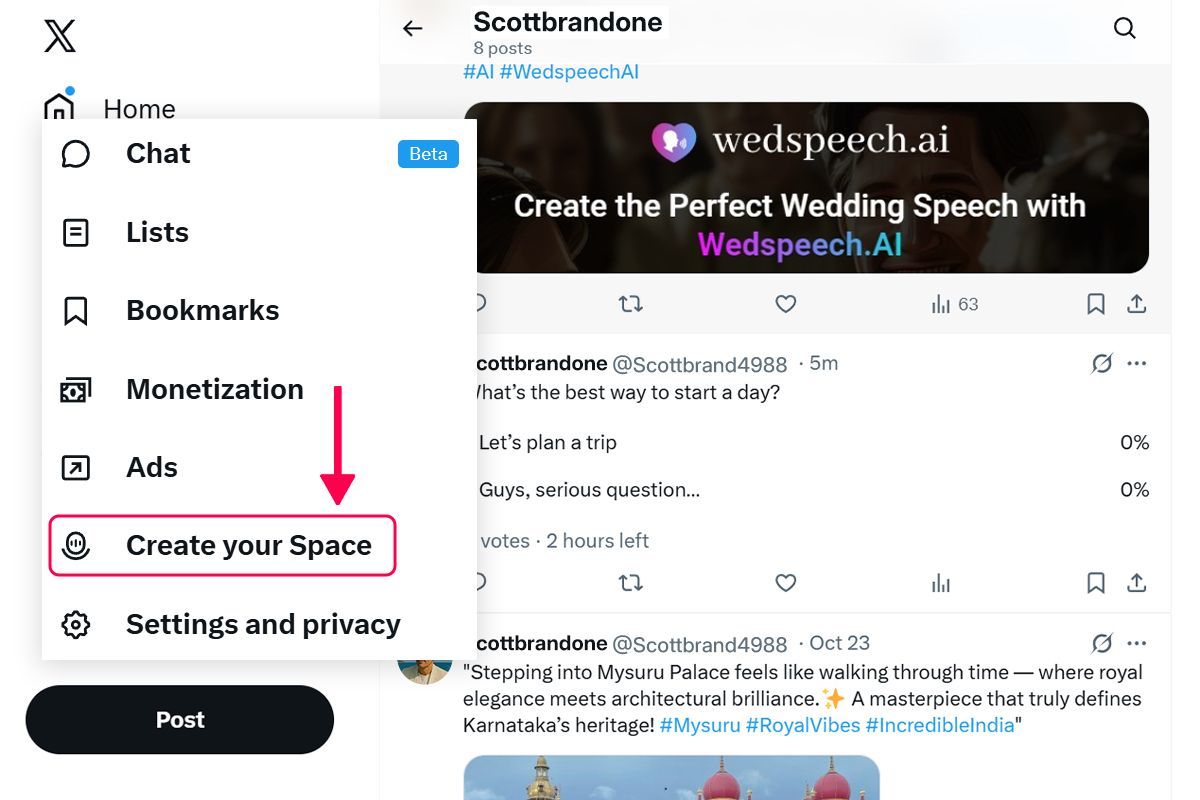
- From the left-hand menu , click “More” (the three dots icon).

3. Select “Create a Space” from the menu.
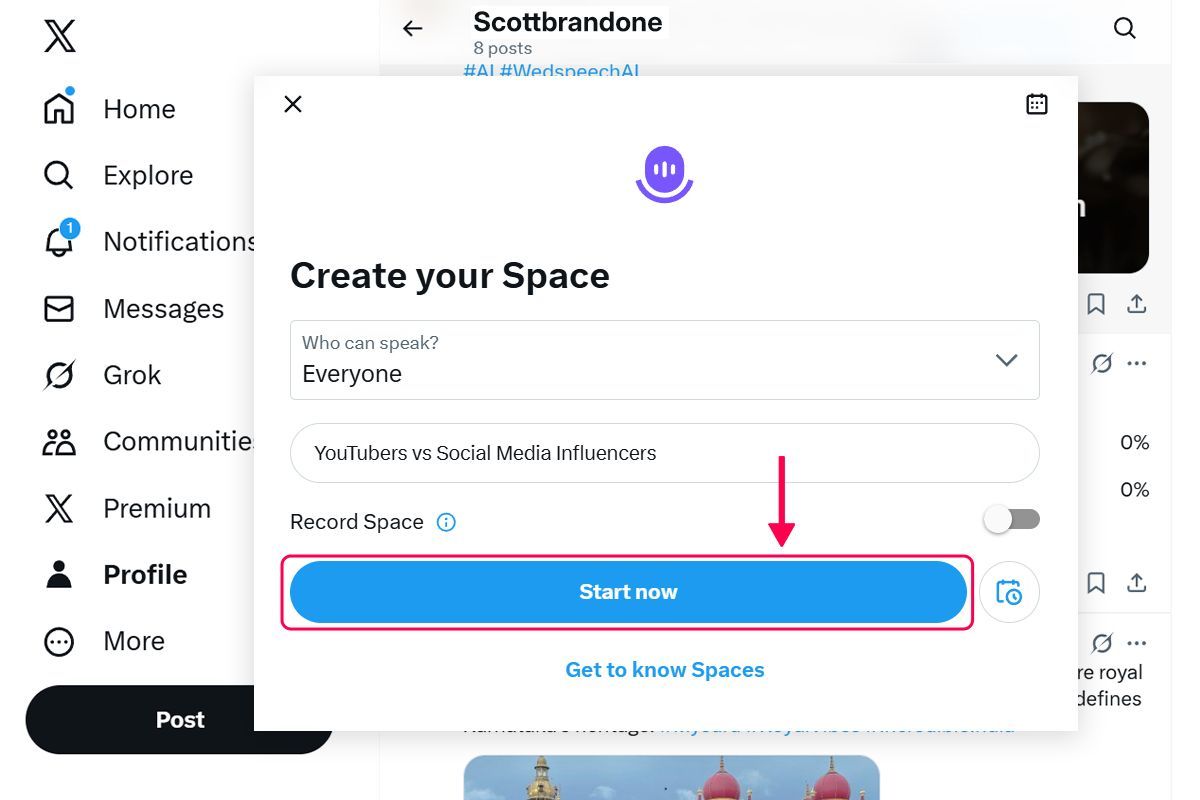
 4. Enter your “Space name” and add topics (optional).

5. Under “Who can speak”, choose one of the following options:
- Everyone – Anyone can request to speak.
- People you follow – Only users you follow can request to speak.
- Only people you invite to speak – You control who joins as speakers.

6. Click “Start your Space” to go live.
7. Once your Space is live, click the “Share” icon (arrow) at the top of the Space window.

8. Click “Copy link to Space”.
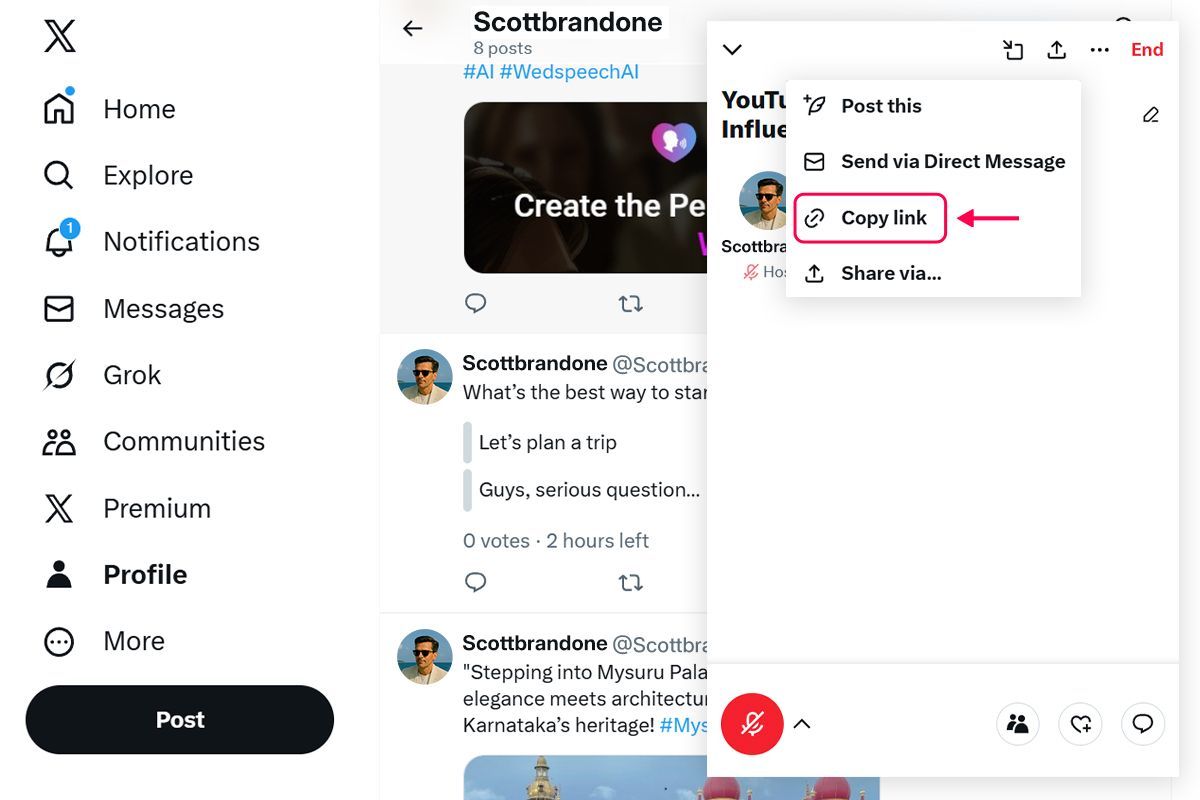
The Space URL will be copied — you can share it anywhere to invite listeners.
Note:
- Make sure the Post/Space is “Public” so others can open the link.
- The above instructions is only for Live Space and how to get the Live Space URL.
How to Get Your X Space URL on Mobile (Android/iOS)
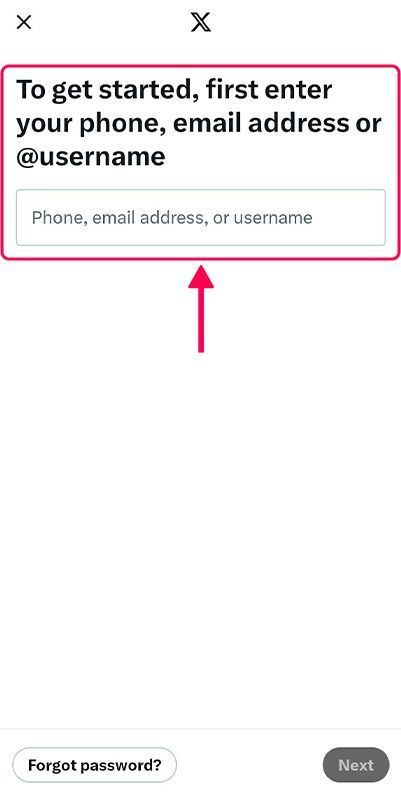
- Open the X app and log in to your account.

- Tap the “Plus (+)” button and then select the “Microphone icon” labeled Space.

- Enter your “ Space name” and add any topics you want (optional).

- Under “Who can speak”, select everyone, in the mobile phone only one option, and it is “For Everyone”.


5. Tap “Start your Space” to begin.
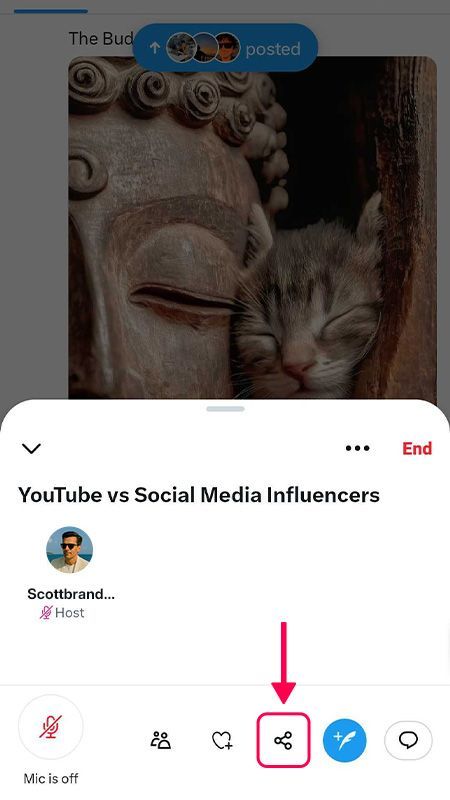
6. Inside the Space, tap the “Share” icon (arrow) at the bottom.
7. Tap “Copy link”.
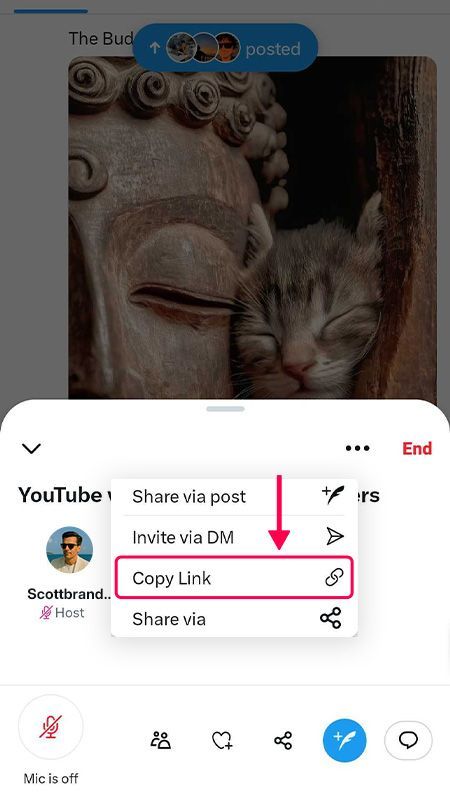
- The “Space URL” is now copied — share it to invite people to join.
Example X Space URL: https://x.com/i/spaces/1234567890123456789
Note
- Make sure the Post/Space is “Public” so others can open the link.
- The above instructions is only for Live Space and how to get the Live Space URL.